
2026-04-29T16:20:00Z
If you need a clear, dynamic way to visualize your tasks, projects, and schedules over a specific period, Stackby’s Timeline View is exactly what you need.
Designed specifically for project management, resource planning, and scheduling, the Timeline View allows you to seamlessly track events, deadlines, and project dependencies in a highly structured format.
Here is everything you need to know to set up and customize your Timeline View so your team can start managing schedules effortlessly.
 Step-by-Step: How to Create a Timeline View
Setting up your Timeline View takes just a few clicks:
Step 1: Add the Timeline View
- Open your Stack, navigate to your workspace, and select the specific table where you want to enable the timeline.* Click on the “+ Add View” button located in your view menu.* Select “Timeline” from the list of available view options.
Step 2: Configure Your Date Fields To build the timeline, Stackby needs to know where your dates are located:
- Start Date Field (Required): Select the column that contains the start date for each task or record.
- End Date Field (Optional): Select the column that contains your task’s end date. Note: If you only have one date column or leave this blank, Stackby will simply assume the task has a one-day duration .
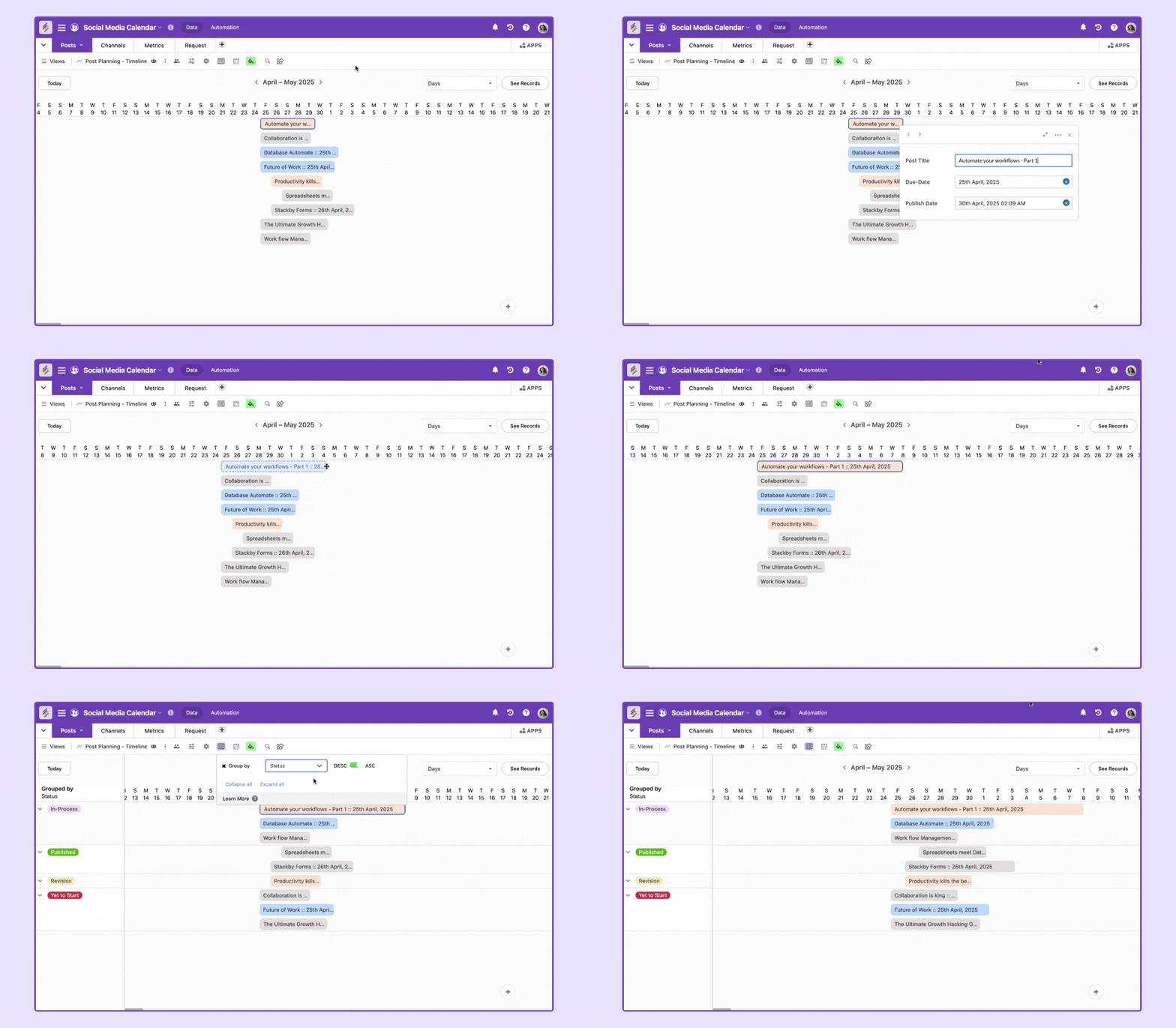
 Customizing Your Timeline Settings
Once your timeline is generated, you can fine-tune exactly how the time periods are displayed using the Date Settings menu:
- Date Visibility
Control which days appear on your timeline based on your team’s working schedule:
- All Calendar Days: Displays every day of the week, including Saturday and Sunday.
- Only Workdays (Mon-Fri): Hides the weekends entirely, showing only Monday through Friday for cleaner work scheduling.
- Initial View (Timescale)
You can define the default timescale that users will see the moment they open the Timeline View. Depending on the scope of your project, you can choose from:
- Days (This is the default setting, showing a daily breakdown of tasks).
- Hours (Great for micro-management and daily scheduling).
- Weeks, Months, or Year (Perfect for high-level roadmaps and broader time visualization).