2026-04-29T14:53:00Z
If you find traditional spreadsheet grids overwhelming or cluttered, Stackby’s newly introduced List View is here to streamline your workflow.
Instead of endless rows and columns, the List View presents your records in a vertical, structured, and single-column layout. It is designed for users who prefer a categorized, easy-to-read format that provides clarity and focus without the distractions of a complex grid.
Here is your complete guide to understanding and setting up the List View for your team.
 Key Features of List View
The List View is packed with functionalities to help you manage your data faster and smarter:
- Structured Organization: Data is displayed in a clean format, allowing for quick scanning and efficient browsing.
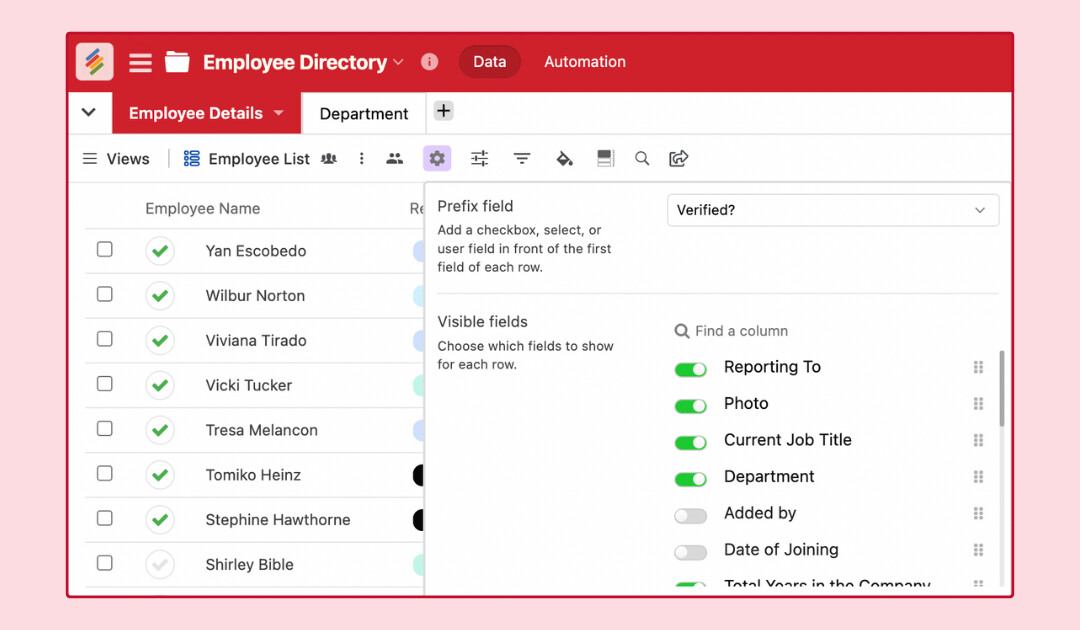
- Prefix Fields: You can add specific column types—like single option, checkbox, and collaborator columns—as “prefix fields.” These will display right before the primary column for better visualization.
- Inline Editing: Users with owner, creator, or editor permissions can make quick updates to fields directly from the List View, saving time and manual effort.
- Expandable Record Details: Simply click on any item in the list to expand its details. You can view descriptions, linked records, or attachments without cluttering the main interface.
- Flexible Sorting & Filtering: Customize your view by sorting and filtering records based on priority, status, or date.
- Color-Coding & Tags: Add labels and colors to categorize your items and enhance visibility.
- Seamless Integration: Any change you make in the List View is instantly updated across all other views in your Stackby table.
 Step-by-Step: How to Set Up List View
Getting started with the List View takes just a few clicks:
Step 1: Add the View
- Open your Stackby table and click on the View menu at the top.
- Select List View from the available options to add it to your workspace.
Step 2: Customize Your Rows
- Prefix Field: From the customization menu, select a column from the dropdown that you want to set as your prefix.
- Visible Fields: Use the toggles to choose exactly which fields you want to remain visible in your list.
- Rearrange: You can easily move column positions from the customized row options.
Step 3: Interact with Your Data
- Right-Click Menu: Right-click on any record to bring up quick options to duplicate the row, expand it, add a comment, copy the URL, or delete it entirely.
- Grouping: Stackby will soon allow you to group records based on categories, teams, or priorities to navigate large datasets even easier.

 Common Use Cases
Because of its distraction-free layout, the List View is incredibly versatile across different industries. It is perfect for:
- Task & To-Do Lists: Managing action items and deadlines.
- Sales CRM: Tracking leads and follow-ups in a neat format.
- Bug & Issue Tracking: Systematically logging software bugs or technical feedback.
- IT & Asset Management: Keeping tabs on software licenses and maintenance logs.2026-04-27T18:30:00Z